Bring Old Photos to Life: The Complete Guide
A faded photo of a grandmother as a young woman can start to blink, smile and turn her head. That is what "bringing an old photo to life" means: software (an AI, meaning a program trained on very many pictures) studies the face in your photo and makes a short video of how that person might have moved.
This guide is for anyone with a box of old family photos who wants to try it. I'm Ozgur Sahin and I make Nostalgia AI, so I use it as the example, but the steps work with most tools.
In short
- A photo can come alive as a moving face, two people in a hug or kiss, a speaking photo, or a memorial video.
- A clear, front-facing face matters more than the age of the photo.
- If the photo is damaged, restore it first, then animate it.
- The video is the software's guess at how the person moved. Keep your original.
What Can Bringing a Photo to Life Do?
There are four main kinds of video, and they feel quite different.
The simplest is a moving face: the person blinks, smiles or waves. Try this one first. Here is an example.
Our guide to making an old photo smile and wave shows that one in detail.
With two photos, often taken years apart, the video puts both people in one moment: a hug, a kiss on the cheek, a toast. In a speaking photo you choose the words and the person says them, in many languages. A memorial video is a gentle, quiet moment, such as a hug or a blessing from someone who has passed away, used for anniversaries, funerals and private comfort.
Before You Start: Choose the Right Photo
The photo you pick affects the result more than anything else. Look for:
- A face looking toward the camera. Side views and people looking down are harder to animate.
- Clear eyes and mouth. If you can see the eyes and the shape of the lips, the video will be much better.
- One or two faces. Large group photos work, but each face is small and gets less detail.
- The largest, sharpest scan you have. A photo taken straight on, in daylight, beats a blurry one with glare.
- A face not hidden by a hat, hand or shadow.
If your photo is scratched, creased or faded, do not give up on it. Restore it first.
If the Photo Is Damaged, Restore It First
Restoring means repairing scratches, tears and stains, and sometimes adding colour to a black and white picture. Do it before you animate. A video made from a clean image looks cleaner too.
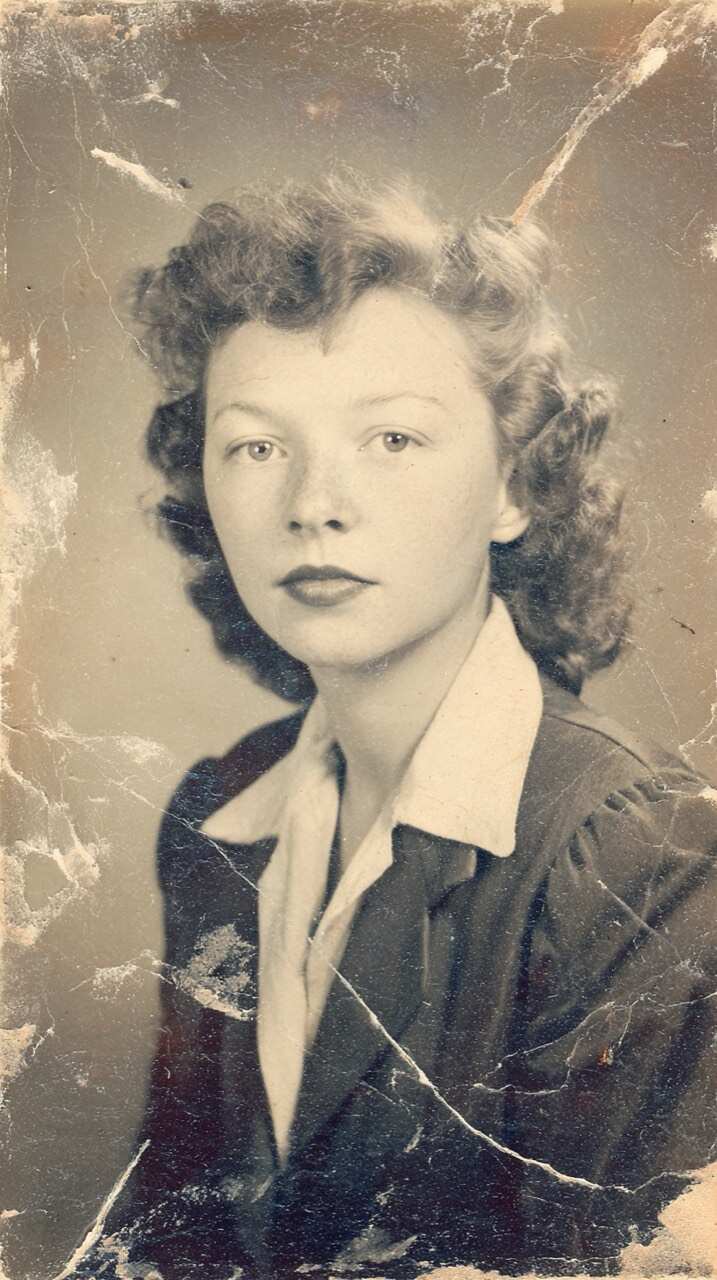
We ran this portrait through Nostalgia AI's restoration to see what changes. On the left is the scan of a cracked, stained print. On the right is the result: the cracks, stains and torn edges are gone, and the software added the colour.
Before
After restoration and colour
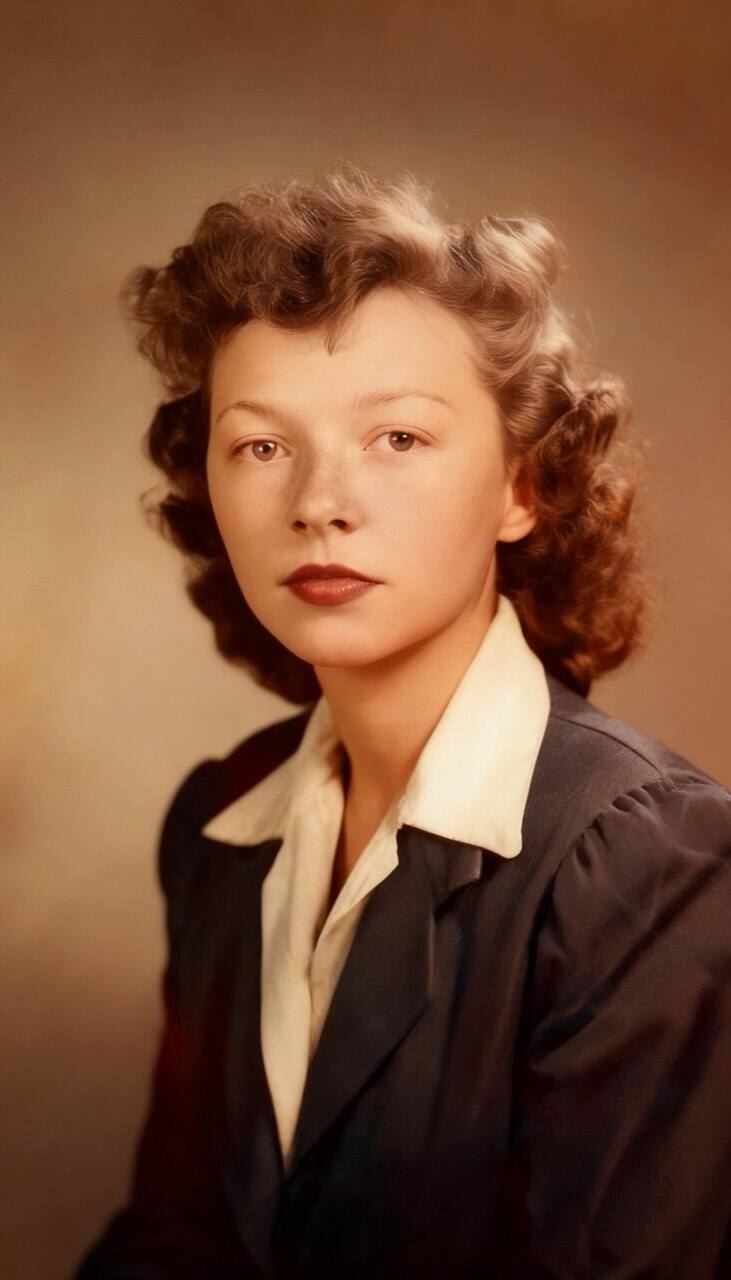
The scan is a public-domain photo (source: dphotos). Restoring a photo in Nostalgia AI takes about 20 seconds and costs $0.99 for one photo, or $4.99 for ten (prices as of November 2026). For a fuller walk through, see how to restore old photos at home, which includes a scan checklist, or try the photo restoration app directly.
Step by Step: Your First Animated Photo
Here is the process in Nostalgia AI. It works on the website, iPhone and Android.
- Open Templates. A template is a ready-made video style, such as a smile, a wave or a hug. You can look through them and watch the previews without paying.
- Choose your photo. Use one photo, or two for a hug or kiss, and pick the clearest face you have.
- Tap Animate and wait. A video usually takes one to two minutes. You can then save it and share it with family.
Making a video needs a paid plan: $4.99 a week or $39.99 a year (prices as of November 2026). The Templates tab shows what each plan includes. Browse the templates to see them first.
Choose a Style for the Occasion
Different moments suit different videos. These are good places to start:
- For a birthday gift: an AI birthday video from a photo of the person.
- For a wedding: a joyful walk down the aisle from a wedding photo.
- For two photos in one hug: an AI hug video from two separate pictures.
- For a baby: a baby dancing or clapping from a baby photo.
Photos That Speak
A talking photo lets you choose the words. People often use it for a short thank you, a birthday greeting, or a message they wish they could have heard. Our guide to making an old photo talk explains how to write the words and what to expect.
You can also create a voice message from a loved one in heaven, which many families find comforting. If you are thinking about this, the guide to an AI video of a deceased loved one explains what it is and what it is not.
What AI Animation Gets Wrong
The video is a guess. The software does not know how your great-aunt really smiled. Expect these limits:
- Details can be invented. Teeth, ears and the fine lines of a smile can look different from the real person.
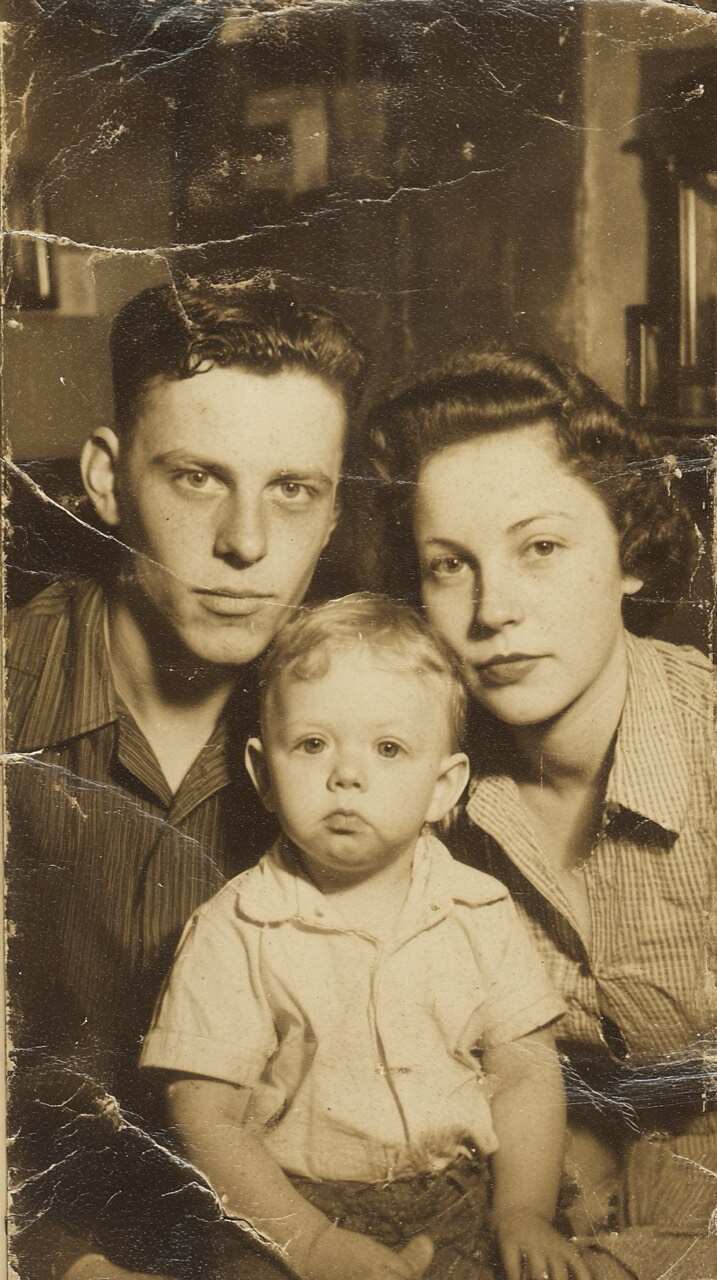
- Colour is a guess too. In our test of the family photo below, the mother's dark hair in the black and white print came back auburn red. The original gives no hint of its true colour.
- Backgrounds may change. In our portrait test above, the cracked backdrop became a smooth studio gradient, and the skin looks smoother than in the original.
- Faces can drift. Always compare the result with your original, especially the eyes, the mouth and the apparent age.
Before
After restoration and colour
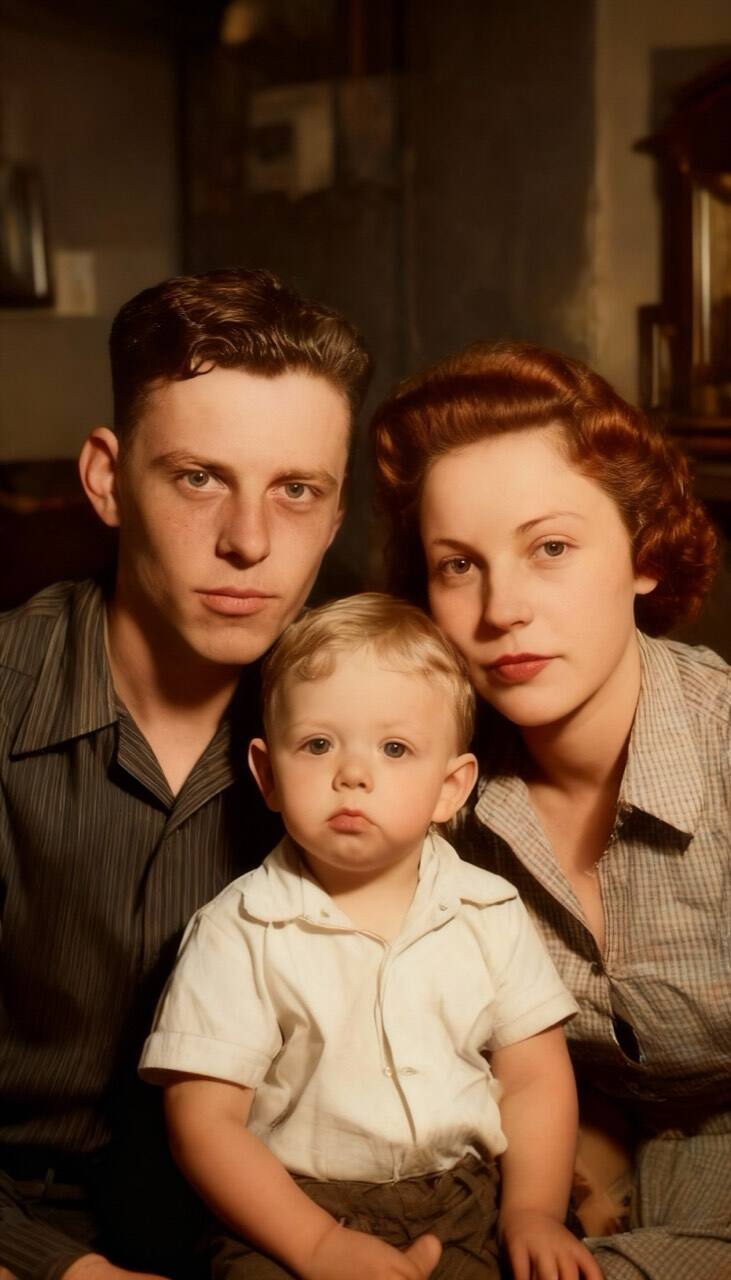
If a result does not look like your relative, try a different photo or a cleaner scan. Never throw away the original. For a photograph of personal or historic value, the Library of Congress suggests framing a copy and keeping the original in good storage (Library of Congress, Preservation FAQ: Photographs, retrieved 2026-11-04). Better tools may exist in a few years.
How Nostalgia AI Compares
We make Nostalgia AI, so judge us accordingly. Other tools animate faces, whole scenes, or both, and they charge in different ways. Our comparison of apps that animate old photos lists four options by what they do and how they charge, with the date we checked each page. You may also like our look at Nostalgia AI and MyHeritage Deep Nostalgia.
Frequently Asked Questions
How long does it take to bring a photo to life?
A video usually takes one to two minutes. Restoring a photo takes about 20 seconds.
Which photos work best?
Clear, front-facing faces with visible eyes and mouth. Sharpness matters more than age.
Can I animate a damaged photo?
Yes, but restore it first. A scratched or faded face gives a poorer video. You can repair damage and add colour with our photo restoration app, then animate the result.
Does it work on my phone?
Yes. Nostalgia AI works on the web, iPhone and Android.
Is the video real?
No. The software guesses how the person might have moved, so treat the video as a keepsake rather than a record of how they really moved.
Try It With Your Own Photo
Pick one photo with a clear face and open the Nostalgia AI templates. Watch the previews first, then choose the photo, tap Animate and wait a couple of minutes. You can also read our guide to animating family photos for more examples.
Ready to bring your own memories to life?

